Grok Video Generator: Create AI Videos with Grok (2026)
Discover how Grok creates AI videos from text prompts and images. Explore video generation features, supported formats, limitations, and useful tips.
Grok AI Video: Create Videos with Grok
Creating videos used to require cameras, editing software, animation skills, and hours of work. AI video generation is changing that process. Today, you can describe a scene in a few sentences and let an AI model turn your idea into a short video.
Grok, developed by xAI, offers video creation through its Imagine experience. Users can describe a scene, animate an existing image, and refine the result with additional instructions. The newer video models also support generated audio, realistic movement, and higher-resolution output.
But how does it actually work? How long can the videos be? Can you create a video from a photograph, and is the feature available without a paid subscription?
This guide explains the available capabilities, how to get started, practical prompt examples, video limits, and important things to consider before using the results.
What Is Grok AI Video?
Grok AI video generation is a feature of xAI's Imagine platform that turns text descriptions, still images, and visual references into short video clips.
Instead of recording a scene yourself, you describe what should happen. The model interprets the subject, movement, camera direction, lighting, and atmosphere to create a sequence of frames.
For example, you could write:
"Create a cinematic video of a red sports car driving along a coastal highway at sunset. The camera follows the vehicle from behind, ocean waves move in the background, and warm sunlight reflects on the road. Use realistic motion and dramatic lighting."
The model attempts to turn those instructions into a moving scene.
You can also start with an existing photograph and describe how you want it to move. This is useful when you already have an image but want to turn it into a short animation.
xAI's video models include Grok Imagine Video 1.5 and Video 1.5 Lite, alongside a model for video editing and extension.
Official documentation: https://docs.x.ai/developers/model-capabilities/video/overview
How Does the Video Generator Work?
The technology uses generative AI to understand a visual description and produce a sequence of frames, with generated audio available in supported models.
There are several important elements behind the process.
Text-to-Video
Text-to-video starts with a written description.
You explain the scene, the subject's actions, camera movement, and visual style. The model creates the initial visual content and animates it into a short clip.
This is useful when you do not have an existing photograph to use.
Image-to-Video
Image-to-video starts with a still picture.
You upload a photograph and describe the movement you want to see. The model uses the supplied image as a visual starting point and generates motion around it.
For example, a photograph of a mountain lake could become a short cinematic scene with moving clouds, rippling water, and a slowly approaching camera.
Reference-to-Video
The more advanced Video 1.5 model supports multiple reference images and voice references.
This gives creators more control over the appearance of subjects and the visual direction of a scene.
According to xAI's documentation, the model supports up to 14 reference images and three voice references per request.
Video Editing and Extension
The Imagine ecosystem also includes tools for modifying existing clips and continuing a video beyond its original ending.
Video editing uses written instructions to request changes while attempting to preserve the rest of the original footage.
Video extension generates additional footage from the end of an existing clip.
These capabilities are particularly useful when a short result needs further refinement.
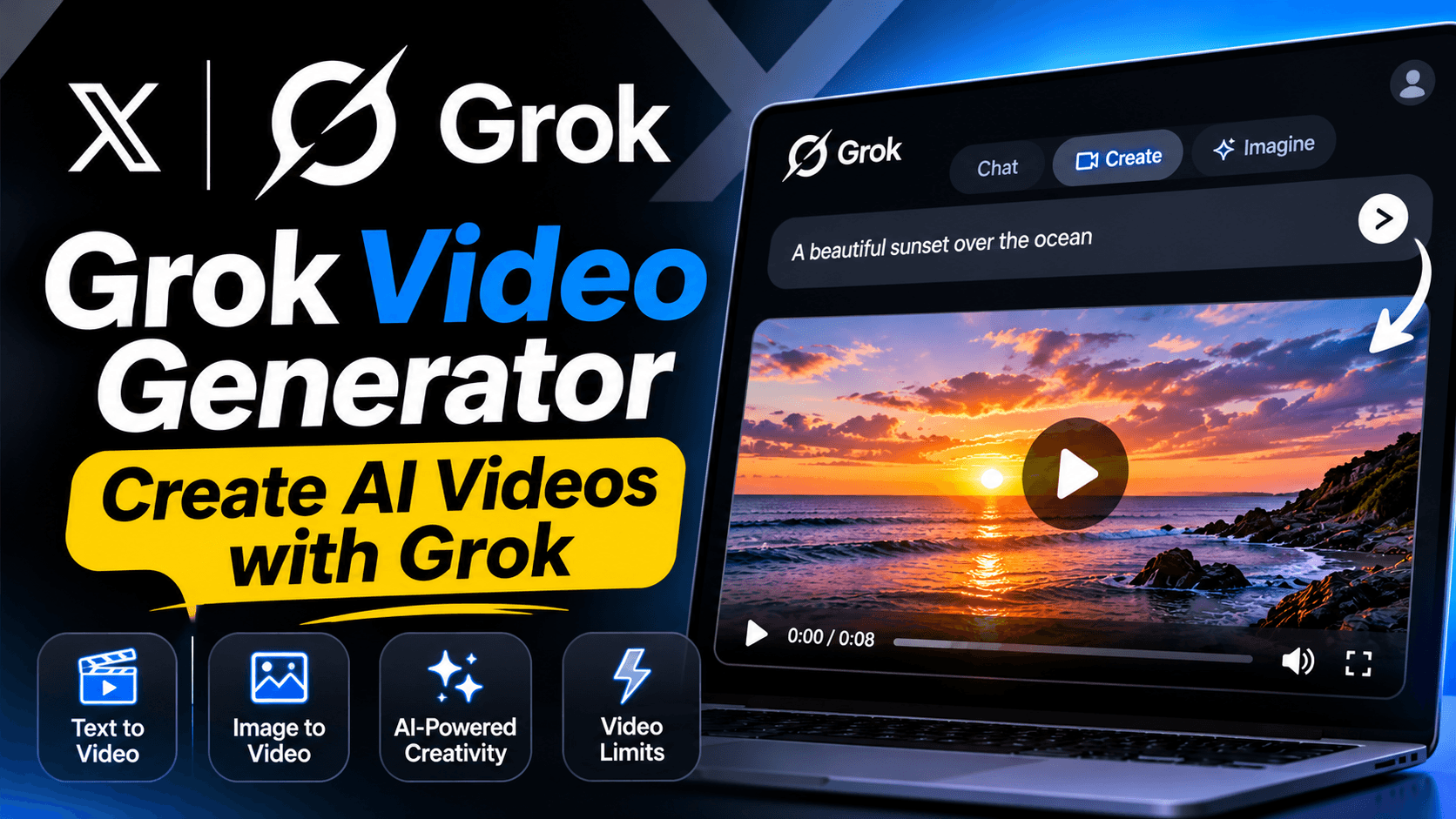
Main Features of Grok Video Generation
The platform offers several capabilities that make it useful for short-form creative projects.
1. Text-to-Video Creation
You can generate a video without uploading an image.
Describe the scene, subject, action, camera movement, and mood. The model interprets the instructions and produces a clip.
Possible applications include:
Short promotional videos.
Social media content.
Animated explainers.
Product demonstrations.
Cinematic visual concepts.
Background footage.
2. Image Animation
An existing image can be used as the starting point for a video.
This is useful for turning product photographs, landscapes, portraits, and illustrations into moving visuals.
You can describe the movement rather than recreating the entire scene from scratch.
3. Generated Audio and Speech
Supported models can generate audio alongside the video.
Video 1.5 includes synchronized speech capabilities, allowing dialogue and other sounds to match the visual sequence.
This can make the result more complete than a silent animation.
However, generated voices and sound effects should always be reviewed before publication.
4. Native 1080p Generation
Video 1.5 supports native 1080p output for text-to-video and image-to-video.
The Lite version can also reach 1080p through upscaling from 720p.
Actual output quality depends on the selected model, resolution, and account or API configuration.
5. Multiple Aspect Ratios
Different platforms require different video dimensions.
The supported API formats include:
16:9 for widescreen video.
9:16 for vertical mobile content.
1:1 for square posts.
4:3 and 3:4 for other layouts.
3:2 and 2:3 for photography-style formats.
21:9 for cinematic widescreen.
This makes it easier to prepare content for different publishing environments.
6. Reference Images and Keyframes
The advanced model supports multiple visual references and pinned frames.
You can use reference images to guide the appearance of a scene and keyframes to define important moments during a clip.
The model then generates the movement between those points.
This offers more creative control than relying on a single text description.
How to Create Videos with Grok
Getting started is straightforward. You can access the Imagine experience through the Grok website or supported mobile applications.
Step 1: Open the Official Website
Visit:
Sign in using your available account.
You can also use the official Grok application on a supported mobile device.
Step 2: Find Imagine
Open the Imagine experience from the interface.
The exact position of the feature may change as the website and mobile applications receive updates.
Step 3: Choose a Creation Method
Depending on the available interface and account access, select a text-based or image-based creation workflow.
Text-to-video: Start with a written description.
Image-to-video: Upload an image and describe the movement.
Reference-based creation: Use supported visual references for additional control.
Step 4: Write a Detailed Prompt
Describe what should happen in the scene.
A useful prompt generally includes:
Main subject.
Action or movement.
Environment.
Camera direction.
Lighting.
Visual style.
Audio requirements, if supported.
For example:
"Create a cinematic 8-second video of a golden retriever running through a green meadow. The camera follows the dog at a low angle. Grass moves naturally in the wind, warm sunlight illuminates the scene, and the atmosphere feels peaceful. Use realistic movement and natural ambient sound."
Step 5: Generate the Video
Submit your instructions and wait for processing.
Generation time depends on the selected model, duration, resolution, and current demand.
Step 6: Review and Refine
Watch the result carefully.
If something does not look right, provide a follow-up instruction.
For example:
"Make the camera movement slower, keep the dog in the center of the frame, and make the sunlight softer. Preserve the original environment."
Small adjustments can make a noticeable difference.
Step 7: Save Your Result
Once you are satisfied, use the available download or sharing option.
Before publishing, review the final clip for visual errors, audio quality, and any AI-generated content labeling requirements.
Best Prompts for Creating AI Videos
A detailed description gives the model a clearer creative direction.
Here are some examples you can experiment with.
1. Cinematic Nature Video
"Create a cinematic video of a beautiful waterfall flowing through a tropical forest. Leaves move gently in the breeze, sunlight passes through the trees, and water splashes naturally against the rocks. Use a slow camera push-in and realistic environmental motion."
2. Product Advertisement
"Create a professional product advertisement showing a premium black smartwatch on a dark reflective surface. The camera slowly rotates around the watch while soft studio lights reveal its design. Use elegant reflections, sharp details, and a luxury commercial style."
3. City at Night
"Generate a realistic cinematic video of a futuristic city at night. Neon signs illuminate wet streets, vehicles move through the traffic, and people walk along the sidewalks. Use a slow aerial camera movement and realistic reflections."
4. Food Commercial
"Create a close-up commercial video of a freshly prepared burger on a wooden table. Steam rises gently, cheese melts over the patty, and the camera slowly moves closer. Use warm restaurant lighting and realistic food textures."
5. Animated Landscape
"Create a peaceful animated landscape featuring a small wooden house beside a lake. Clouds move slowly across the sky, water ripples naturally, and trees sway in a gentle breeze. Use soft morning light and a cinematic wide shot."
6. Social Media Video
"Create a vertical short-form video showing a modern desk setup with a laptop, headphones, and a smartphone. The camera moves smoothly from left to right, highlighting each object. Use clean lighting and a minimalist technology aesthetic."
You can modify these descriptions to suit your own projects.
What Is the Video Limit on Grok?
This is one of the most important questions for anyone planning to create videos regularly.
There is no single universal limit that applies to every Grok account and every video-generation method. It is important to distinguish between the maximum clip duration supported by the API models and the usage allowance available in the consumer website or mobile application.
Maximum Video Duration
According to xAI's current API documentation, the main Imagine video models support clips of up to 15 seconds.
The documented duration range is:
| Video Model | Maximum Duration |
| Grok Imagine Video 1.5 | 15 seconds |
| Grok Imagine Video 1.5 Lite | 15 seconds |
| Grok Imagine Video | 15 seconds |
These are API model specifications. They should not be interpreted as a guarantee that every user can generate a 15-second clip through the consumer application.
Daily or Weekly Generation Limits
For paid Grok users, xAI documents a shared weekly usage allowance across products such as Chat, Imagine, Voice, and Build.
This means that video generation can consume more of your available usage than ordinary text conversations.
The amount of usage consumed depends on the task and its computational requirements.
You can check your account's available usage through:
Settings → Usage
The displayed usage information includes the remaining allowance and the weekly reset schedule.
Does the Free Account Have Unlimited Video Generation?
No. Free access should not be confused with unlimited generation.
The actual number of videos available can depend on account eligibility, current limits, and the available feature configuration.
For the latest account-specific allowance, check the usage information displayed in Grok rather than relying on an old number published elsewhere.
Official reference: https://docs.x.ai/grok/faq
Grok Video 1.5 vs Video 1.5 Lite
xAI offers different models for different creative requirements.
| Feature | Video 1.5 | Video 1.5 Lite |
| Text-to-video | Yes | Yes |
| Image-to-video | Yes | Yes |
| Maximum duration | 15 seconds | 15 seconds |
| 1080p | Native | Upscaled |
| Generated audio | Yes | Yes |
| Lip-synced speech | Yes | Yes |
| Multiple reference images | Yes | Not supported |
| Voice references | Yes | Not supported |
| Pinned keyframes | Yes | Not supported |
Video 1.5 is designed for more advanced creative control, including references, voices, and keyframes.
The Lite version is aimed at simpler text and image-based video creation with lower API pricing.
For users who want straightforward short clips, Lite may be sufficient. For more demanding visual projects, the standard model offers additional controls.
Source: https://docs.x.ai/developers/model-capabilities/video/overview
What Can You Create with This Technology?
The practical applications go beyond experimenting with AI-generated scenes.
Social Media Content
Creators can develop short videos for TikTok, Instagram Reels, and YouTube Shorts.
Vertical formats make it easier to prepare content for mobile-first platforms.
Product Advertisements
Businesses can create promotional concepts, product reveals, and short advertising clips.
However, generated visuals should accurately represent the real product.
Educational Videos
Teachers and content creators can produce short visual explanations of concepts that are difficult to demonstrate using static images.
Website Backgrounds
Short loopable clips can add movement to selected website sections.
For performance reasons, website owners should optimize video file size and avoid autoplaying large videos on mobile connections.
Creative Storytelling
Writers and filmmakers can experiment with scenes, camera movements, and visual concepts before investing in a full production.
Limitations You Should Know
Despite its capabilities, AI-generated video is not a perfect replacement for traditional filmmaking.
1. Short Clip Duration
The documented API maximum is 15 seconds per generation. Longer projects may require multiple clips and additional editing.
2. Inconsistent Details
Small visual details may change between frames. Faces, hands, text, and objects should be checked carefully.
3. Motion Errors
Complex movements can sometimes look unnatural. Physics and scene consistency may vary.
4. Usage Restrictions
Your account may have generation and usage restrictions. Higher-resolution output and more complex tasks can consume more resources.
5. Audio Quality
Generated dialogue and sound effects may not always be perfect. Review speech synchronization, pronunciation, and background audio.
6. Watermarks
Generated videos include a Grok watermark. xAI's FAQ states that there is no setting to remove it, and removing or obscuring provenance signals is prohibited under its policy.
Frequently Asked Questions
What is a Grok video generator?
It is an AI-powered feature within xAI's Imagine experience that creates short videos from text descriptions, images, and supported visual references.
Can I create a video from a text prompt?
Yes. Supported models can interpret written descriptions and turn them into short video clips with visual movement and generated audio.
Can I animate an existing photograph?
Yes. Image-to-video creation allows you to provide a still image and describe the motion you want.
What is the maximum video length?
The current API documentation lists a maximum duration of 15 seconds for the main Imagine video models. Consumer application limits may differ.
Does it support 1080p?
Yes. Video 1.5 supports native 1080p for text-to-video and image-to-video. The Lite model reaches 1080p through upscaling.
Can it generate audio?
Yes. Supported models generate audio with video, including synchronized speech capabilities.
Is it available on mobile?
Yes. The Imagine experience is available through supported iOS and Android applications, as well as the web platform. Feature availability can vary by account and rollout.
Can I use generated clips commercially?
Commercial use depends on the applicable xAI terms and the rights associated with the content used in your prompt. You should also consider copyright, trademarks, privacy, publicity rights, and applicable laws before publishing or selling generated media.
Why does my video come out at a lower resolution?
One possible reason is your account's resolution allowance. xAI's FAQ specifically explains that 720p output can fall back to 480p after the applicable tier's 720p cap has been reached.
Final Verdict
Grok's video creation capabilities make it an interesting option for people who want to turn written ideas and existing images into short visual clips.
Its strongest features include text-to-video, image animation, generated audio, reference-based creation, and support for high-resolution output.
The 15-second API duration limit makes it more suitable for short-form content, product demonstrations, social media clips, and creative experiments than for producing complete long-form videos in a single generation.
Video 1.5 offers more advanced creative controls, while Lite provides a simpler and lower-cost API option.
Overall, it is worth exploring if you want to experiment with AI-assisted video production without starting every project with a camera or traditional animation software.