Grok Imagine: Generate AI Images with Grok (2026)
Discover how Grok Imagine creates AI images from text prompts and reference photos. Explore its features, editing options, and practical tips.
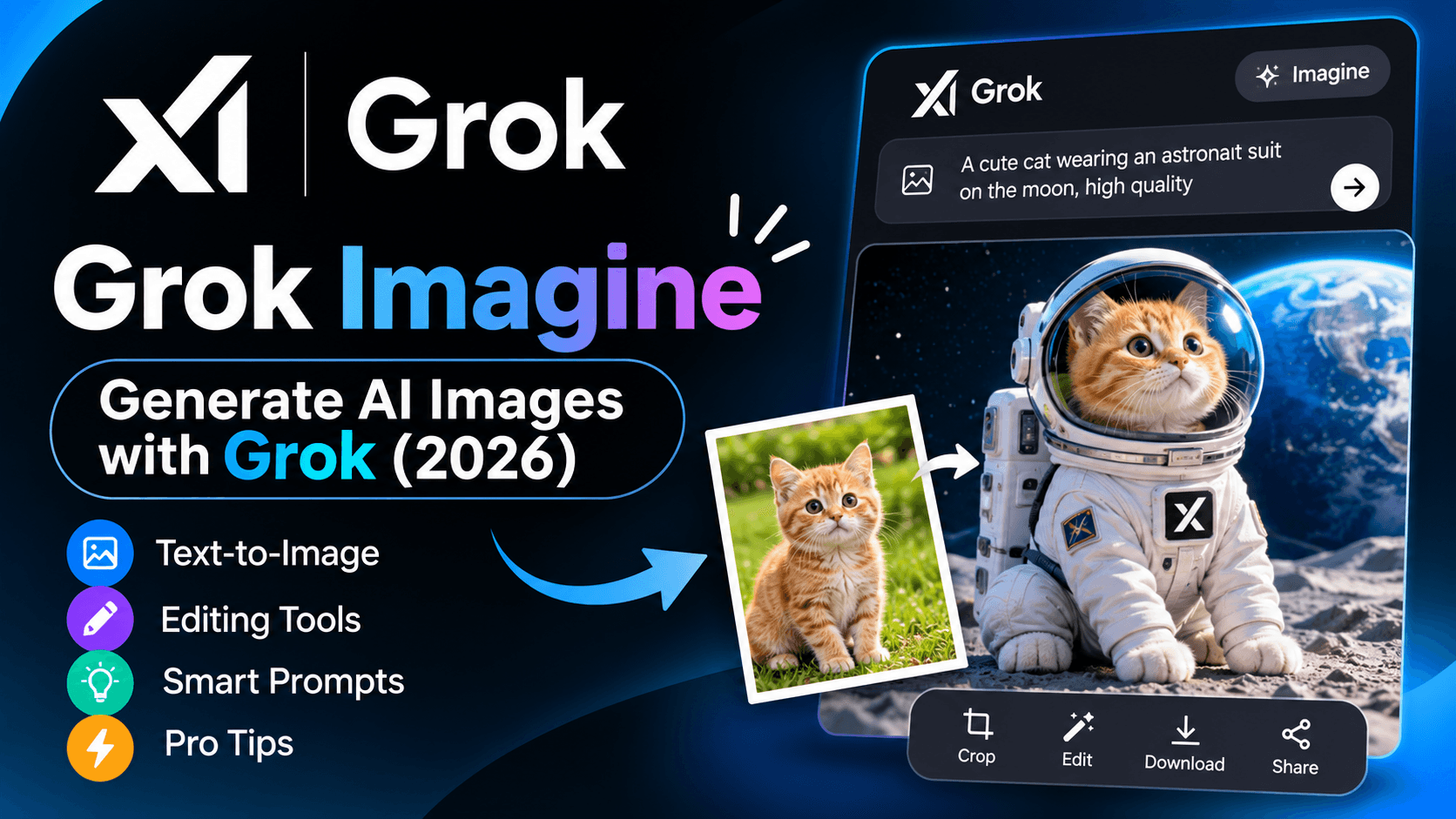
Grok Imagine: Generate AI Images with Grok
Creating high-quality images no longer requires advanced graphic design skills or expensive software. With a simple text description, you can turn an idea into a visual in seconds. Grok Imagine makes this process accessible by allowing users to generate and edit images through natural language instructions.
Whether you want a realistic photograph, a creative illustration, a product image, or an attractive social media graphic, the tool offers several ways to bring your ideas to life.
One of its biggest advantages is that image creation and editing can happen within the same conversation. Instead of starting over whenever something looks wrong, you can ask for changes and refine the result.
In this guide, we will explore its main features, how image generation works, practical prompt examples, editing capabilities, limitations, and some useful tips for getting better results.
What Is Grok Imagine?
Grok Imagine is an AI-powered image and video creation feature developed by xAI. It allows users to generate visual content from written descriptions and reference images.
Rather than manually drawing or designing everything, you describe what you want. The AI interprets your instructions and creates an image based on the subject, visual style, composition, lighting, and other details.
For example, you could enter:
"Create a realistic photograph of a small wooden cabin beside a peaceful lake, surrounded by green pine trees, during a beautiful autumn sunset. Use cinematic lighting and natural colors."
The system interprets the description and generates an image that attempts to match your request.
You can also upload an existing photograph and request specific changes. This makes it useful for both creating something completely new and improving existing visual content.
According to xAI, its Imagine Image 2.0 model became generally available in August 2026 through Quality Mode on the web and mobile applications.
Official announcement: https://x.ai/news/grok-imagine-image-2
How Does Grok Imagine Work?
The technology uses generative AI models to interpret written instructions and produce visual output.
When you submit a description, the model processes different elements of your request, including:
Subject: The main person, object, animal, or environment.
Style: Whether the result should look realistic, artistic, cinematic, or illustrated.
Lighting: Natural daylight, studio lighting, sunset, or dramatic shadows.
Composition: Camera angle, subject placement, background, and framing.
Details: Clothing, colors, textures, expressions, and other visual elements.
These instructions help the model understand what you want to create.
The result may not always match your expectations perfectly. However, you can provide additional instructions to correct details and improve the image.
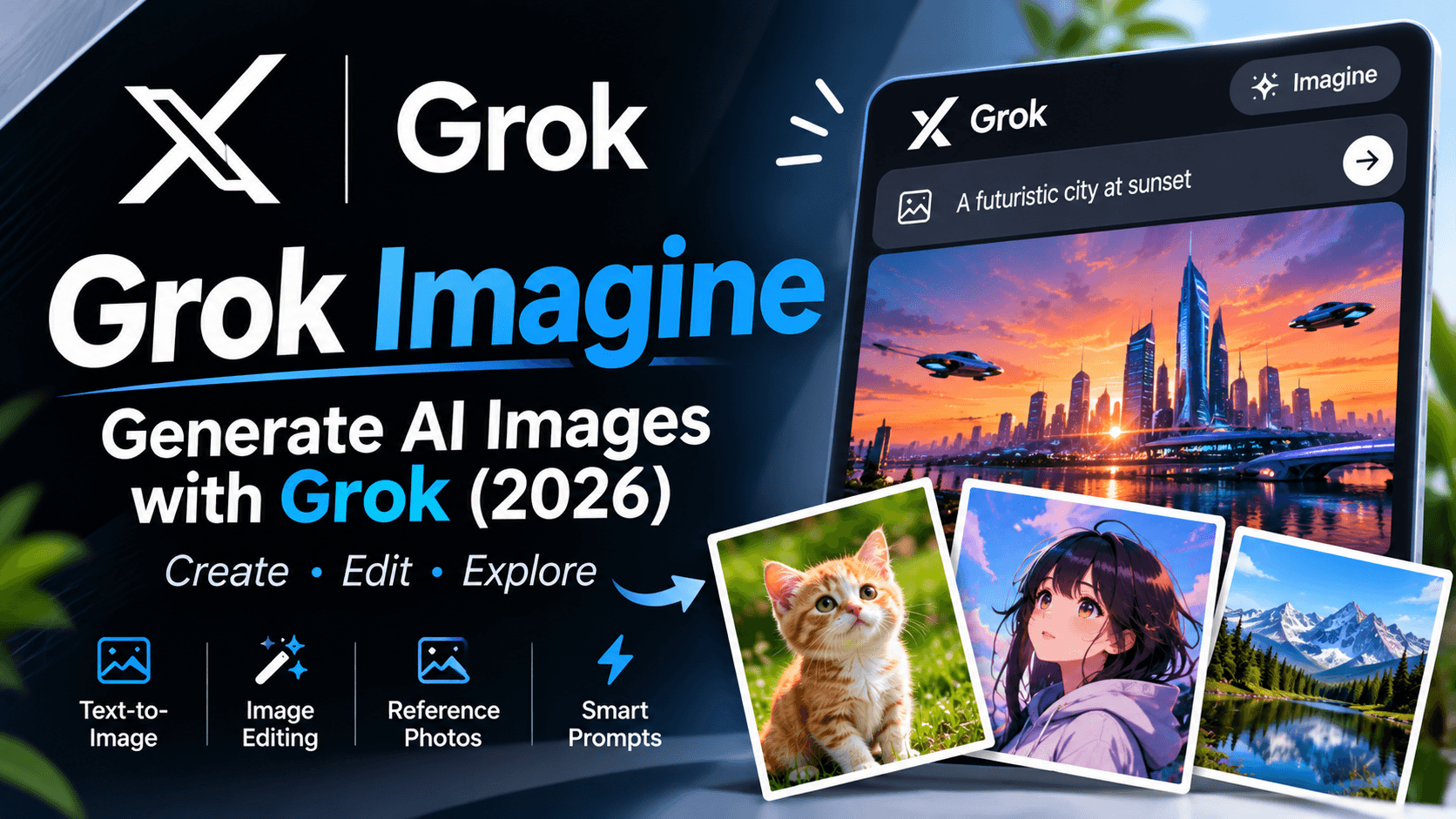
Main Features of Grok Imagine
The platform offers more than basic text-based image creation. Its newer Image 2.0 capabilities introduce several useful editing and design features.
1. Text-to-Image Generation
The most straightforward feature is creating images from written descriptions.
You do not need to understand professional design software. Simply explain your idea in natural language.
For example, you can request:
A realistic portrait of a person in a modern city.
A cinematic landscape with mountains and clouds.
A professional product advertisement.
A colorful digital illustration.
A futuristic city at night.
The more clearly you describe the desired result, the easier it is for the model to understand your creative direction.
2. Image Editing
Generating an image is only one part of the process. Sometimes you already have a picture but want to change a particular element.
The editing capabilities allow you to provide additional instructions for modifying an existing image.
You might ask the system to:
Change the background.
Adjust the lighting.
Replace an object.
Modify colors.
Improve the overall composition.
Add or remove visual elements.
One useful approach is to make small changes instead of requesting a completely different image every time.
3. Precise Editing with the Magic Wand
Image 2.0 introduces more targeted editing options.
The magic wand allows users to point to a particular region and request a change while keeping other parts of the image intact.
For example, imagine you have a photograph of a person standing in a garden. You want to change the flowers without altering the person's appearance.
You can select the relevant area and describe the desired modification.
This approach can save time when you only need to improve one part of a larger composition.
4. Segmentation
Segmentation provides more precise control over selected areas of an image.
It helps isolate particular elements so that changes can be focused on the intended subject rather than affecting the entire picture.
This can be useful for product photography, creative projects, and detailed visual editing.
5. Background Removal
Another useful capability is background removal.
You can separate a subject from its original background and prepare it for use in another design.
For example, an online store owner might want to isolate a product from a photograph before placing it on a clean promotional background.
Transparent backgrounds can also be useful for graphics, icons, and marketing materials.
6. Multiple Reference Images
Image 2.0 supports up to five reference images in a single generation.
This is useful when you want the model to consider multiple visual references instead of relying on a written description alone.
For example, you might provide:
One image for the character's appearance.
Another image for clothing.
A third image for the background style.
The model can use these references to help create a more consistent result.
7. Smart Resize and Aspect Ratios
Different platforms require different image dimensions.
A square image might work well for a social media post, while a wide image may be more appropriate for a website banner.
The smart resize feature allows users to recompose an existing image into different aspect ratios.
The available formats described by xAI include:
1:1
4:3
3:2
16:9
9:16
2:3
3:4
2:1
1:2
Instead of simply stretching the original picture, the model can fill the new frame while adapting the composition.
Source: https://x.ai/news/grok-imagine-image-2
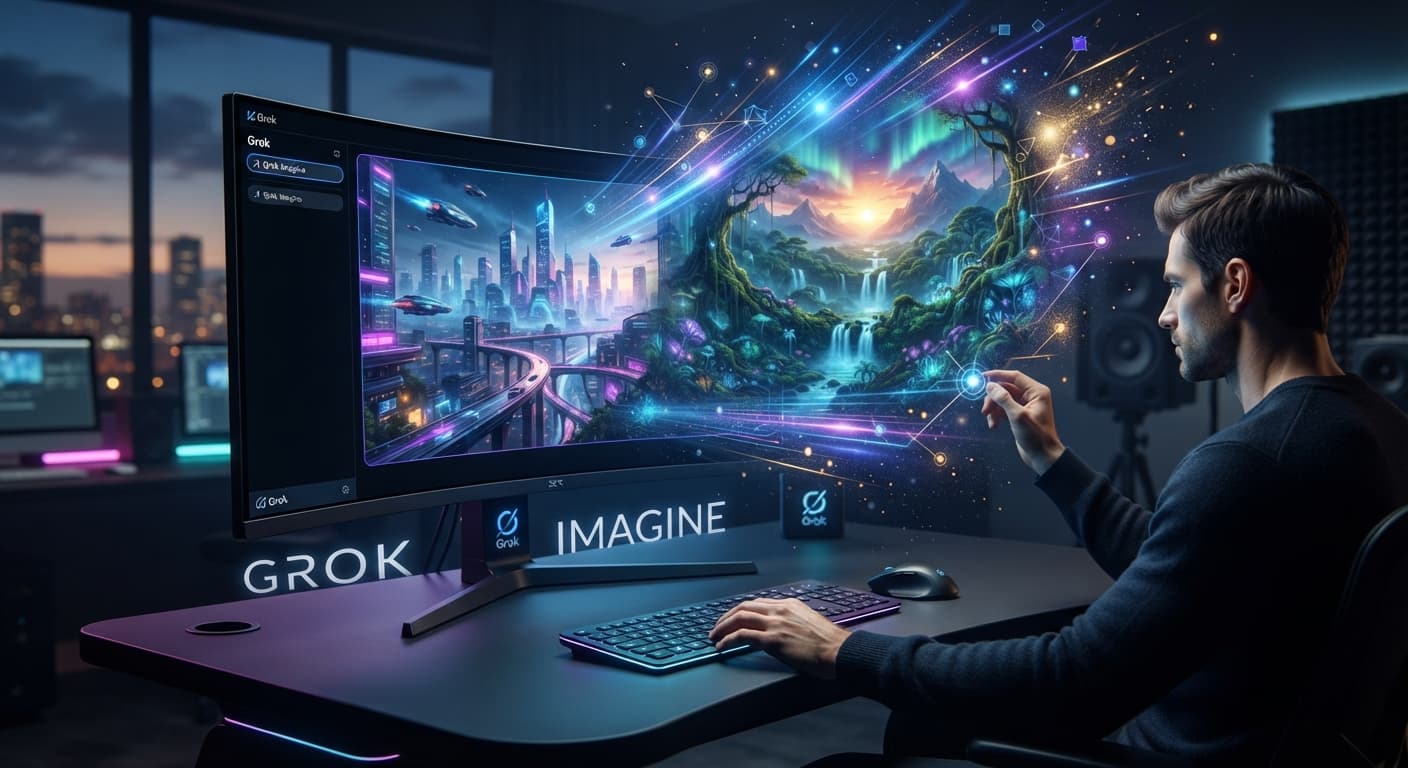
How to Generate Images with Grok
Getting started is relatively simple. You can use the web version or a supported mobile application.
Step 1: Open Grok
Visit the official website:
You can also access Grok through its official mobile applications.
Step 2: Sign In
Log in using an available account option.
Make sure you are using the correct account if you have an existing subscription.
Step 3: Open Imagine
Find the image creation feature in the interface.
Depending on your application version and account, the available options and interface layout may differ.
Step 4: Enter Your Prompt
Write a description of the image you want.
Try to include the subject, environment, lighting, visual style, and composition.
For example:
"Create a professional photograph of a luxury black sports car parked outside a modern glass building. Use realistic reflections, soft evening lighting, a cinematic camera angle, and high detail."
Avoid descriptions that are too vague.
Step 5: Generate Your Image
Submit your instructions and wait for the result.
Generation time may vary depending on the model, current demand, account access, and selected settings.
Step 6: Refine the Result
If the first output is not what you expected, provide another instruction.
For example:
"Make the background brighter, reduce the reflections on the car, and use a wider camera angle. Keep the original subject unchanged."
You can continue refining the image until it better matches your idea.
Best Grok Imagine Prompts
A good prompt can make a significant difference to the final output.
Instead of writing only a few general words, describe the important visual elements.
Here are some examples you can experiment with.
1. Realistic Portrait
"Create a photorealistic portrait of a young adult standing beside a large window. Use soft natural daylight, realistic skin texture, subtle shadows, and a professional photography style. Keep the background simple and uncluttered."
2. Cinematic Landscape
"Generate a cinematic landscape showing a beautiful mountain range surrounded by clouds. Add a peaceful lake in the foreground, warm sunset lighting, realistic reflections, and a dramatic atmosphere."
3. Product Photography
"Create a premium product photograph of a modern wireless headphone placed on a clean white surface. Use professional studio lighting, realistic shadows, sharp details, and a minimal commercial photography style."
4. Anime Illustration
"Create a detailed anime-style illustration of a character standing on a rooftop overlooking a futuristic city. Use glowing neon lights, a beautiful night sky, dramatic composition, and rich visual details."
5. Professional Website Banner
"Create a wide professional website banner featuring a modern technology workspace with a laptop, soft blue lighting, and a clean minimalist environment. Leave sufficient negative space on the left side for a website heading."
6. Fantasy Artwork
"Create an imaginative fantasy scene showing an ancient castle floating above the clouds. Include waterfalls, distant mountains, dramatic sunlight, and detailed architectural elements. Use a high-quality digital painting style."
These examples can be adjusted to match different creative projects.
Tips for Getting Better Results
Even a capable image model can produce unexpected results when instructions are unclear.
The following practices can help improve your output.
Be Specific
Instead of writing "a beautiful house," describe the architecture, location, materials, lighting, and surrounding environment.
Specific instructions give the model more context.
Explain the Visual Style
Tell the system whether you want a realistic photograph, digital painting, illustration, or cinematic composition.
This reduces ambiguity.
Describe the Lighting
Lighting can completely change the appearance of an image.
You can specify natural daylight, golden-hour lighting, studio lighting, or dramatic shadows.
Use Reference Images
When appearance or visual consistency matters, reference images can provide additional context.
This is particularly useful when working with characters, products, or established visual styles.
Refine One Element at a Time
Do not change everything in every follow-up instruction.
If the background is wrong, focus on the background. If the lighting needs improvement, change only the lighting.
This makes the editing process easier to control.
What Can You Create with Grok Imagine?
There are several practical applications beyond experimenting with AI-generated artwork.
Social Media Graphics
Content creators can develop visual assets for social media posts, promotional campaigns, and other digital content.
Product Images
Small businesses can experiment with product presentation, advertising concepts, and promotional visuals.
However, generated product images should be checked carefully to ensure that they do not misrepresent the actual product.
Website Illustrations
Website owners can create custom illustrations and visual concepts for landing pages, blog headers, and promotional sections.
Creative Artwork
Artists and hobbyists can explore different visual styles, experiment with compositions, and turn written ideas into illustrations.
Marketing Concepts
Marketing teams can use generated visuals to explore campaign ideas, prepare mockups, and develop early design concepts.
For final commercial materials, review the output for accuracy, licensing requirements, and brand consistency.
Is Grok Imagine Free?
Grok is free to start, but access to specific features and usage limits can depend on your account, subscription, and current availability.
Paid SuperGrok plans provide higher usage limits and additional access.
The important thing to understand is that free access does not necessarily mean unlimited image generation.
Limits and subscription benefits can change over time. Therefore, check the current options displayed in your account before purchasing a subscription.
Official website: https://grok.com/
Limitations You Should Know
Although the technology offers several useful capabilities, there are some limitations to consider.
1. Results May Vary
The same description can produce different outputs. You may need multiple attempts to achieve your desired result.
2. Complex Instructions Can Be Difficult
A prompt containing too many unrelated requirements may produce unexpected results.
3. Small Details Need Review
Check faces, hands, objects, text, and background details carefully. AI-generated images are not always perfectly accurate.
4. Usage Limits Apply
Your available generation capacity may depend on your plan and account usage.
5. Privacy Requires Attention
Avoid uploading confidential photographs, personal documents, or sensitive information unless you understand the applicable privacy settings and data policies.
6. AI Watermarks
Generated media may include an AI identification watermark. The current Grok FAQ states that its watermark cannot be removed through a setting.
Frequently Asked Questions
What is Grok Imagine used for?
It is used to create and edit images using written descriptions and reference photographs. It can help with illustrations, product visuals, portraits, marketing concepts, and other creative projects.
Can I generate images using text?
Yes. You can describe the subject, visual style, lighting, and composition in natural language. The model then attempts to create an image based on your instructions.
Can I edit an existing photograph?
Yes. You can provide a reference photograph and request changes. Image 2.0 also includes targeted editing capabilities for modifying selected areas.
Does it support different image sizes?
Yes. Its smart resize functionality supports multiple aspect ratios, including square, portrait, landscape, and wide formats.
Can I use multiple reference images?
Yes. According to xAI's Image 2.0 announcement, you can use up to five reference images in a single generation.
Are generated images suitable for commercial projects?
The official Imagine page states that users own what they create, including commercial use. However, commercial use does not remove your responsibility to respect copyright, trademarks, privacy, publicity rights, and applicable laws.
Check the current terms before using generated material in a commercial project.
Is it available on mobile?
Yes. The feature is available through supported iOS and Android applications, as well as the web experience.
Can I create videos too?
Yes. The Imagine experience also supports video creation. Video generation is a separate capability, with its own available settings and usage limits.
Final Verdict
Grok Imagine is a useful option for people who want to create and edit visual content without relying entirely on traditional design software.
Its strongest advantages are natural-language generation, conversational editing, targeted modifications, multiple reference images, and flexible image resizing.
The newer Image 2.0 capabilities make it particularly interesting for users who need more control over the final composition rather than simply generating a picture from a short description.
However, it is not a perfect replacement for professional graphic design software. Complex projects still require careful review, and the generated results may need several rounds of editing.
Overall, it is worth exploring if you regularly create digital artwork, website visuals, product concepts, or social media graphics.