Best Free AI Video Generator in 2026
Compare the best free AI video generators in 2026. Explore Google Flow, CapCut, Adobe Firefly, Runway, and Canva, including free-plan limits.
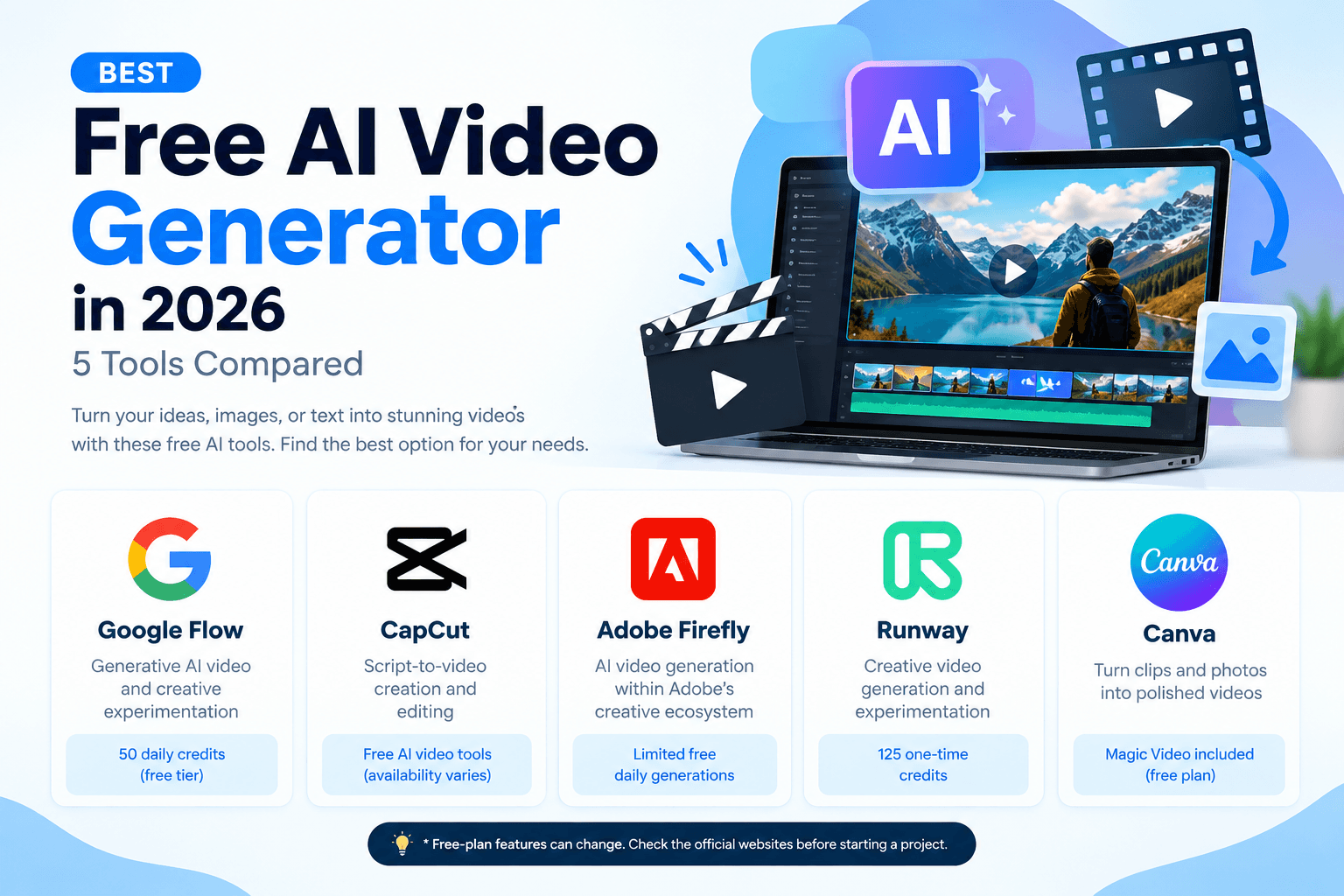
Best Free AI Video Generator in 2026: 5 Tools Compared
Looking for the best free AI video generator to create videos without paying for expensive software? Several AI tools can turn text prompts, images, or existing clips into engaging videos. However, their free plans are not all the same. Some provide daily credits, some offer limited generations, and others focus on editing rather than generating completely new footage.
In this guide, we compare five AI video generators and video creation tools: Google Flow, CapCut, Adobe Firefly, Runway, and Canva. You will learn what each tool does best, what you can try for free, and which option makes the most sense for your project.
Whether you need a free AI video generator from text, an image-to-video tool, or an easy way to make videos for YouTube and social media, this guide will help you choose.
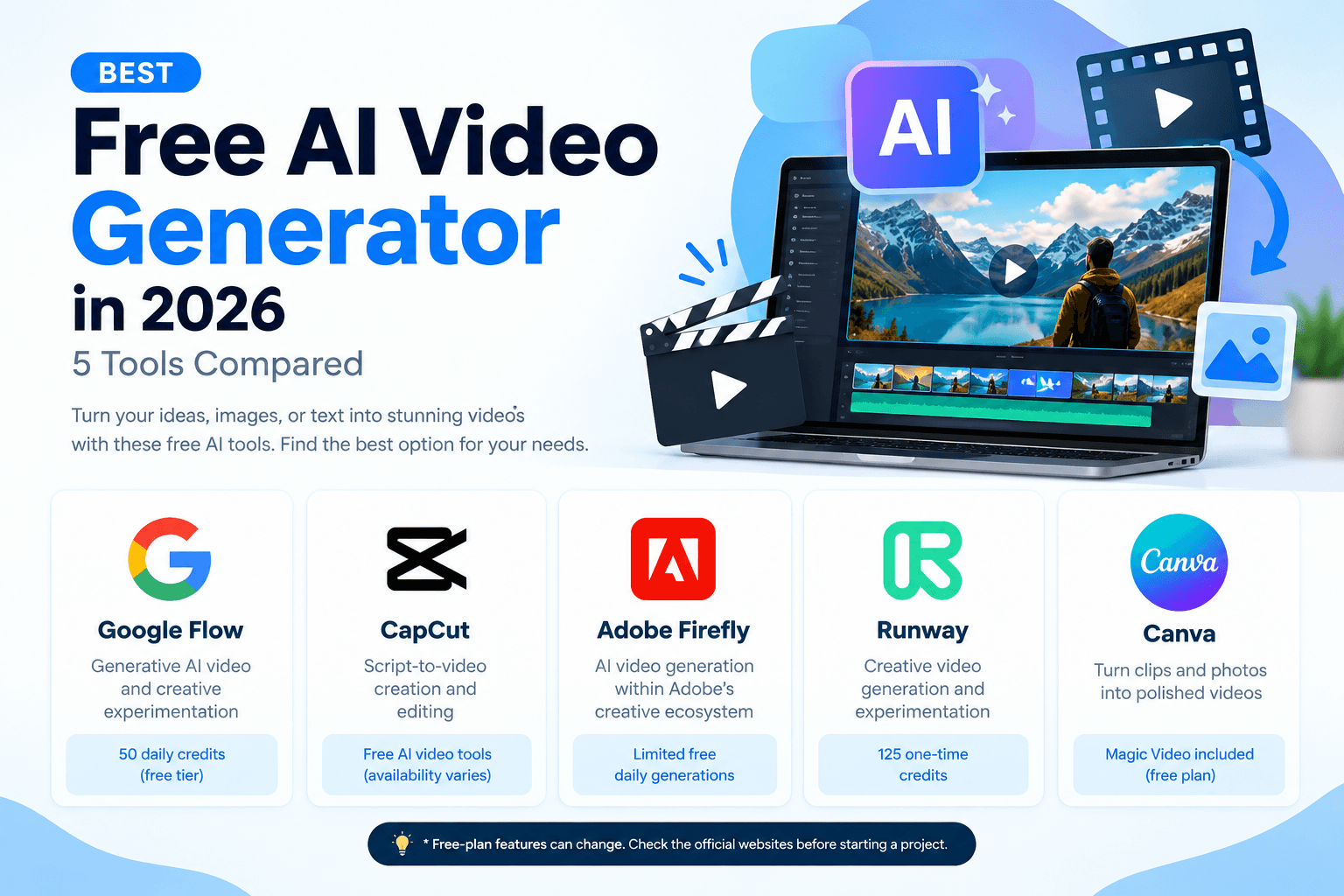
Quick Comparison: Best Free AI Video Generators
| AI Video Tool | Best For | Free Access | Main Limitation |
| Google Flow | Generative AI video and creative experimentation | 50 daily Flow credits on the free tier listed on its official page | Availability and generation costs vary |
| CapCut | Script-to-video creation and editing | Free AI video creation tools are advertised | Some features may require payment or vary by region |
| Adobe Firefly | AI video generation within Adobe's creative ecosystem | Limited free daily generations | Free generations are limited |
| Runway | Creative video generation and experimentation | 125 one-time credits | Credits do not renew; free exports have a watermark |
| Canva | Turning clips and photos into polished videos | Magic Video is included with Canva's free plan | Best suited to combining and editing existing media |
Free-plan features can change. Check the official websites before starting a project.
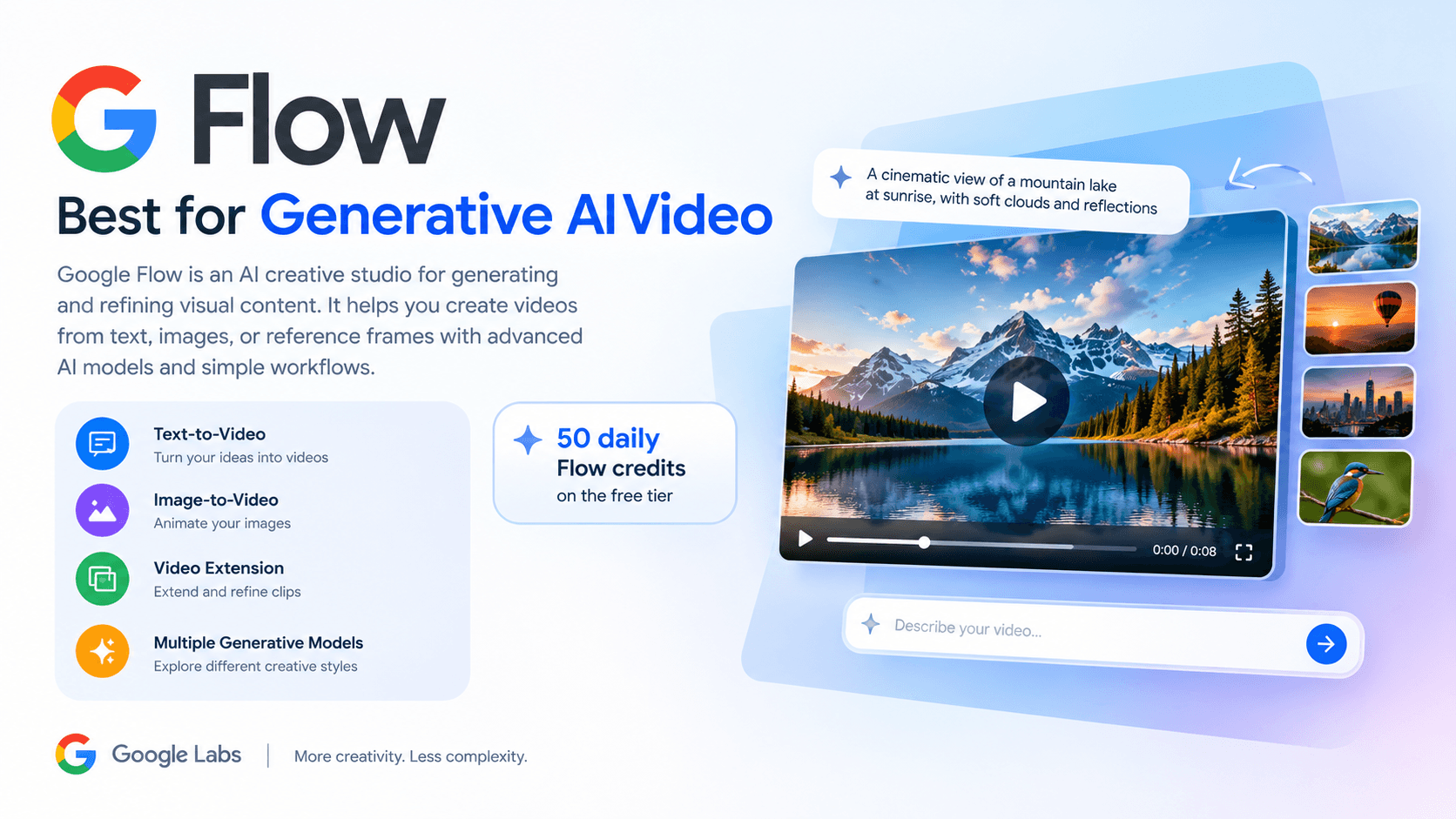
1. Google Flow — Best for Generative AI Video
Google Flow is an AI creative studio for generating and refining visual content. It supports workflows such as text-to-video, frames-to-video, video extension, and video editing, with access depending on the account, plan, and region.
Its official pricing page lists 50 daily Google Flow credits for users without a Google AI subscription. The number of videos those credits produce depends on the model and generation settings, so a daily credit allowance does not mean unlimited video creation.
Key features
Generate videos from text prompts.
Create videos from image frames or other visual references.
Extend and refine supported video generations.
Experiment with different generative models.
Who should use it?
Google Flow is worth exploring if you want to experiment with AI-generated scenes, cinematic visuals, or more advanced video workflows. Before choosing it, check whether the service is available in your country and which models your account can access.
Official website: Google Flow
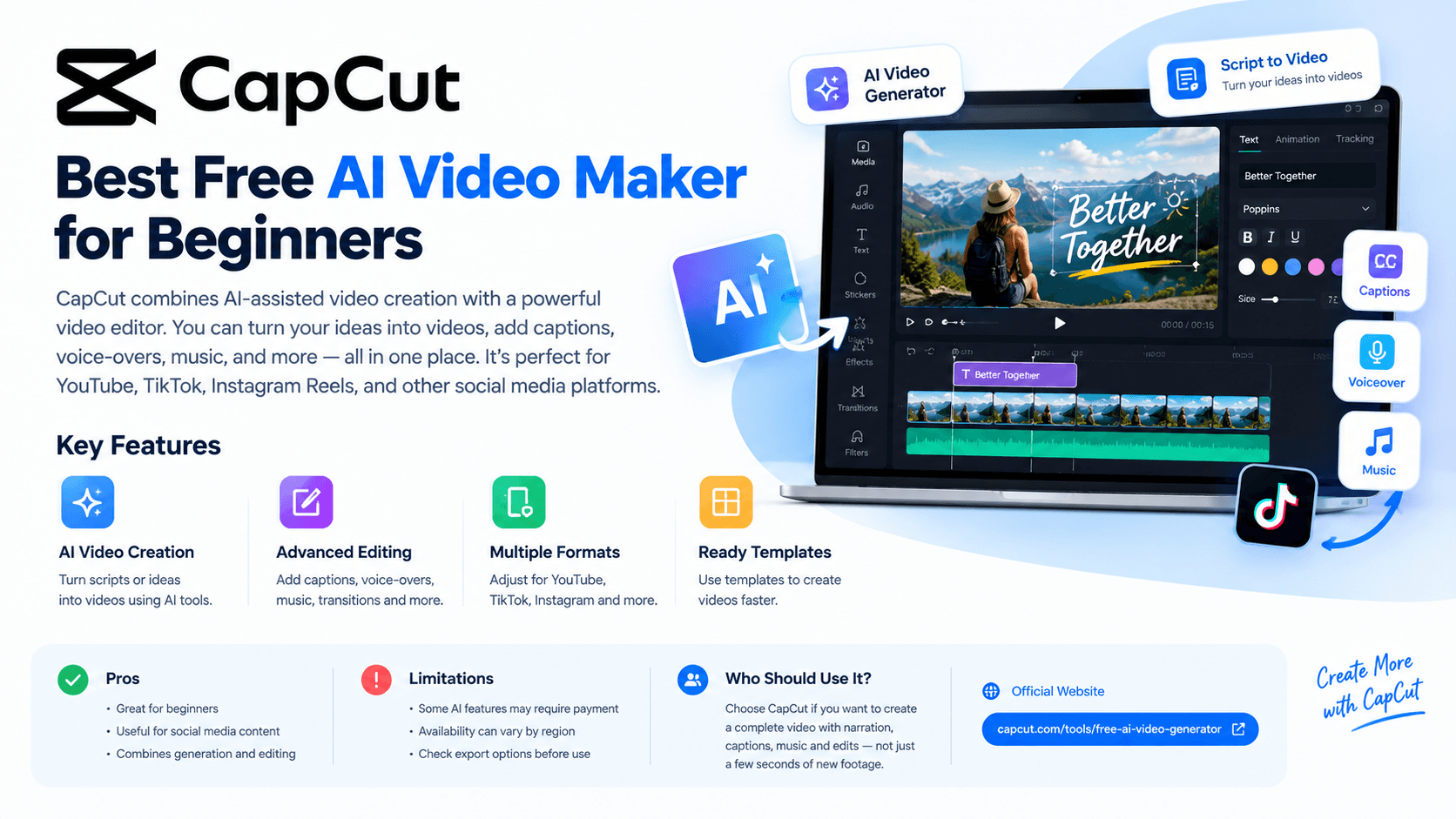
2. CapCut — Best Free AI Video Maker for Beginners
CapCut combines AI-assisted video creation with a video editor. Its AI video maker can help turn a written script into a video, while its editing tools let you adjust clips, add captions, use voice-overs, and refine the final result.
This makes CapCut useful when you need more than a short AI-generated scene. You can use it to assemble a complete video for YouTube, TikTok, Instagram Reels, or other social media platforms.
Key features
Create videos from scripts or ideas using available AI tools.
Add text, captions, voice-overs, music, and transitions.
Adjust video formats for different social media platforms.
Edit and refine the result before exporting.
Pros
Suitable for beginners who want an editing workflow as well as AI features.
Useful for social media content and short promotional videos.
Combines generation and editing in one place.
Limitations
Not every AI feature is necessarily free, and availability can vary between platforms and regions. Check the specific feature and export options before relying on CapCut for a regular production workflow.
Who should use it?
Choose CapCut if your goal is to create a finished video with narration, captions, music, and edits rather than generate only a few seconds of new footage.
Official website: CapCut AI Video Generator
3. Adobe Firefly — Best for Adobe Creative Workflows
Adobe Firefly includes AI video generation tools that can create short clips from text prompts or images. It can be useful when you want to experiment with visual concepts, create B-roll, or develop footage for a larger creative project.
Adobe advertises limited free daily generations across selected image, video, and audio features. The exact allowance depends on the available models and plan, so check your account before starting a project that requires multiple generations.
Key features
Generate video from text prompts.
Animate images using supported image-to-video tools.
Develop visual concepts and short cinematic scenes.
Explore AI tools alongside Adobe's wider creative ecosystem.
Pros
Useful for creative exploration and visual storytelling.
Offers both text-to-video and image-to-video workflows.
Can fit into broader design and video production processes.
Limitations
Free generations are limited. Features, model access, usage rights, and output options can vary by plan and model.
Who should use it?
Adobe Firefly is worth considering for designers, marketers, and creators who already work with Adobe products or want to experiment with AI-generated visuals as part of a larger project.
Official website: Adobe Firefly AI Video Generator
4. Runway — Best for Creative AI Video Experimentation
Runway is an AI creative platform for generating video and images and exploring more advanced visual workflows. You can use supported models to create footage from text prompts or animate existing images.
For example, a travel creator could describe a misty mountain landscape at sunrise, while a marketer could experiment with a product scene before planning a larger advertisement.
Runway is worth trying, but there is an important distinction between free access and ongoing free video generation.
What Does Runway's Free Plan Include?
Runway's official Free plan includes:
125 one-time credits.
5 GB of asset storage.
Access to a limited selection of generative tools.
Watermarked video exports.
The 125 credits do not expire, but they do not renew after you use them. You cannot purchase additional credits while remaining on the Free plan. Some models require a paid subscription, and model availability can change.
Important: Runway's Gen-4.5 model requires Standard or a higher plan. Its published cost is 12 credits per second of generated video, but this rate does not mean you can use Gen-4.5 with your Free-plan credits.
Runway Pros and Cons
Pros
Text-to-video and image-to-video workflows through supported models.
Useful for experimenting with creative concepts and visual styles.
A selection of AI tools can be explored without an upfront subscription.
Cons
The free credit allowance is one-time rather than monthly.
Free exports include a Runway watermark.
Some advanced models and features require a paid plan.
Who should use Runway?
Runway is a good option to explore if you want to test AI video generation and creative workflows before paying. However, if you need to create many new videos every month without a budget, its Free plan may not be sufficient.
Official website: Runway
For the latest details, see Runway Free Plan documentation.
5. Canva — Best for Simple Video Creation
Canva is a design platform that also offers video creation and editing tools. Its Magic Video feature can turn uploaded clips or photos into a video with templates, transitions, and music. Canva says Magic Video is included with its free plan.
However, Magic Video is different from a dedicated text-to-video generator that creates entirely new footage from a written prompt. It is particularly useful when you already have photos or clips and want to turn them into a polished video.
Key features
Combine photos and clips into a video.
Apply templates, transitions, and music.
Customize the design and edit the generated result.
Prepare videos for presentations, social media, or promotional content.
Pros
Beginner-friendly design and editing workflow.
Useful when you already have media assets.
Combines video creation with templates and graphic design.
Limitations
Magic Video relies on existing clips or photos, and its availability and language support have specific requirements. Do not assume that every Canva AI feature is available without limits on every plan.
Who should use Canva?
Choose Canva if you want to turn existing images and footage into a finished video without learning a complicated editing workflow.
Official website: Canva
More details: Canva Magic Video Help
Which Free AI Video Generator Should You Choose?
The best free AI video generator depends on what you want to create.
For generative video experiments: Start with Google Flow, provided it is available in your country.
For script-to-video and editing: Try CapCut's AI video maker.
For AI-generated visuals within Adobe's ecosystem: Explore Adobe Firefly.
For advanced creative experimentation: Try Runway's Free plan, keeping its one-time credits in mind.
For turning photos and clips into a finished video: Use Canva Magic Video.
Before signing up, compare more than the word "free." Check whether credits refresh, whether exported videos have watermarks, what resolution is available, and whether your intended use is allowed under the tool's terms.
How to Make an AI Video From Text
Most text-to-video AI generators follow a similar process. The exact controls vary by platform, but these steps provide a useful starting point.
Step 1: Choose a Tool
Select a tool based on your needs. A generative video platform may be better for creating new footage, while an AI video maker with editing features may be better for producing a complete social media video.
Step 2: Write a Clear Prompt
Describe the subject, action, setting, lighting, and camera movement. Specific instructions usually provide a better starting point than a vague request.
For example, instead of writing "Make a beautiful nature video," describe the landscape, atmosphere, movement, and camera style.
Step 3: Generate the Video
Enter your prompt and choose the available settings. Check the estimated credit cost before generating if you have a limited balance.
Step 4: Review the Result
Watch the entire clip. Look for unnatural movement, distorted objects, inconsistent faces, and visual details that do not match your instructions.
Step 5: Edit and Export
Add captions, music, narration, or transitions if needed. Check the watermark, resolution, file format, and usage terms before publishing the final video.
5 AI Video Prompts You Can Copy and Try
These prompts can be adapted for a compatible text-to-video AI generator. Results depend on the model and settings you choose.
1. Cinematic Nature Video
Cinematic wide shot of a green mountain valley at sunrise, thin mist moving between the hills, warm golden sunlight, gentle wind in the grass, slow forward camera movement, realistic atmosphere and natural colours.
2. Product Advertisement
A premium black wireless headphone displayed on a clean studio surface, soft reflections, dramatic side lighting, slow camera orbit, elegant product-commercial style, minimal background and realistic materials.
3. Travel Video
Aerial view of a tropical beach with turquoise water and white sand, small waves rolling toward the shore, sunlight reflecting on the sea, smooth drone-style camera movement and natural colours.
4. Futuristic City
A futuristic city street at night, glowing signs reflecting on wet pavement, pedestrians moving in the distance, light rain, cinematic tracking shot, detailed architecture and a moody science-fiction atmosphere.
5. Food Advertisement
Close-up of a freshly prepared burger on a wooden table, steam rising gently, soft natural window light, slow camera push-in, crisp lettuce, realistic textures and professional restaurant advertising style.
Prompt tip: Keep your first prompt focused on one main action. After reviewing the result, add or change one detail at a time. This makes it easier to see which instructions improve the video.
What to Check Before Choosing a Free AI Video Generator
A tool can advertise free access and still be unsuitable for your project. Review these points before investing time in a workflow.
Free credit limits: Does the tool give you daily or monthly credits, or only a one-time starter allowance?
Watermarks: Will the exported video contain the platform's logo? This matters if you want a clean video for a portfolio or client.
Video quality: Check the available resolution, clip length, aspect ratio, and whether higher-quality models require payment.
Ease of editing: Some platforms focus on generating footage, while others help you create a complete video with narration, captions, music, and transitions.
Commercial use: Do not assume that a free plan automatically permits every commercial use. Read the current licence and terms for the model and plan you intend to use.
Availability: A tool or model may not be accessible in every country. Check regional availability before building your workflow around it.
Frequently Asked Questions
What is the best free AI video generator in 2026?
There is no single best choice for every project. Google Flow is worth exploring for generative video, CapCut for script-to-video and editing, Adobe Firefly for Adobe-connected creative workflows, Runway for experimenting with AI video tools, and Canva for turning existing photos and clips into polished videos.
Is there a free AI video generator from text?
Yes. CapCut, Google Flow, Adobe Firefly, and supported Runway models offer text-to-video workflows. Free access, available models, and generation limits vary, so check the current terms for each platform.
Which AI video generator has free credits?
Google Flow's official page lists 50 daily Flow credits on its free tier. Runway offers 125 one-time credits that do not expire or renew. Adobe Firefly advertises limited free daily generations. These allowances work differently, and they may change.
Is Runway AI completely free?
Runway offers a Free plan, but it is limited. It includes 125 one-time credits, 5 GB of storage, selected generative tools, and watermarked video exports. It does not provide a recurring monthly credit allowance.
Can I create an AI video without a watermark?
Some tools advertise watermark-free exports, but free-plan conditions vary. Check the exact export option, selected model, and plan before creating a video for publication.
Can I use free AI-generated videos commercially?
Commercial use depends on the platform, model, plan, and relevant licence terms. Review those terms before using generated clips in advertisements, client work, or monetized content.
Can I make AI videos for YouTube?
Yes. AI-generated clips can be used as part of YouTube videos, explainers, tutorials, and other content, subject to the platform's terms and any applicable disclosure requirements. You may need a separate editor to add narration, captions, sound, and transitions.
Are free AI video generators unlimited?
Usually, no. Many hosted tools limit free generations through credits, daily allowances, selected models, or export restrictions. A free plan may be useful for testing without being enough for regular production.
Final Verdict
The best free AI video generator is the one that fits your creative goal and gives you enough usable output within its free limits.
Start with Google Flow if you want to explore generative video and can access it in your region. Choose CapCut for a more complete script-to-video and editing workflow, Adobe Firefly for its creative ecosystem, Runway to experiment with advanced AI video tools, or Canva when you want to transform existing photos and clips into a finished video.
Runway remains worth trying, but its one-time credits make it a limited free option rather than an unlimited video generator. Compare the free plans carefully before choosing a tool for ongoing work.
Free-plan details and model access checked on October 28, 2026. Providers may change pricing, credits, regional availability, and features. Always verify the official plan before generating videos.